
XML Sitemap and HTML Sitemap? Key Differences Explained
-
By Devraj
-
12th October 2026
Have you ever wondered how Google finds pages on a website or how visitors find important pages without searching through every menu? Sitemaps help make both tasks easier. An XML sitemap helps search engines discover important URLs on a website, while an HTML sitemap helps visitors find pages through a structured list of links.
For students learning Search Engine Optimization (SEO), understanding both sitemap types is important. They serve different purposes, but both can support better website navigation and management. In this guide, Skill Hives explains what XML and HTML sitemaps are, how they work, how to create them, where to find them, and how to check whether they are working correctly.
Want to learn technical SEO the practical way?
Skill Hives helps students build real SEO skills through hands-on learning, not just theory.
Table of Content
XML Sitemap vs HTML Sitemap: Key Differences
Why Are XML and HTML Sitemaps Important?
How to Create an XML Sitemap: Step by Step
How to Submit an XML Sitemap to Google Search Console
How to Create an HTML Sitemap: Step by Step
Where Can You Find an XML Sitemap and an HTML Sitemap?
What Is an XML Sitemap?
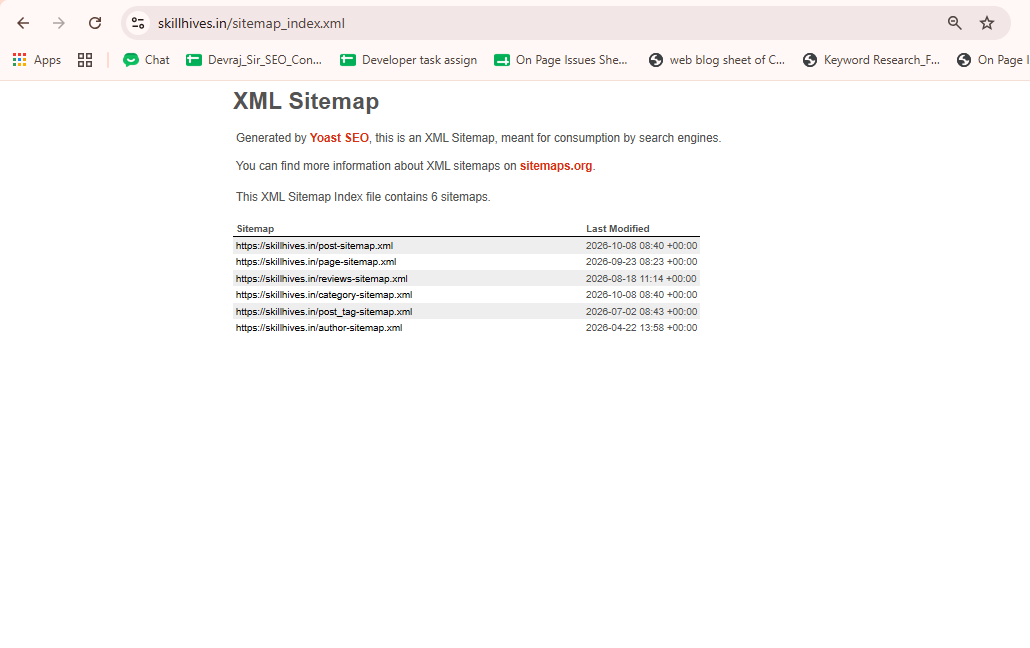
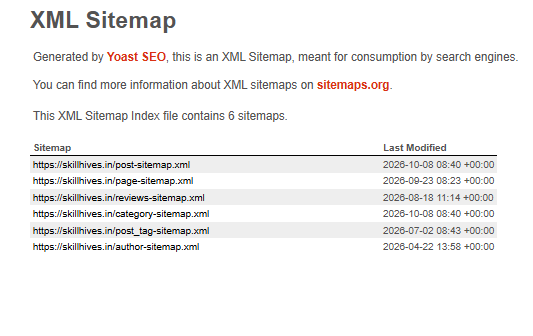
An XML sitemap is a file that lists important URLs on a website in a format search engines can read. XML stands for Extensible Markup Language. Search engines such as Google can use this file to discover website pages more efficiently, especially when a website has many pages or contains new content.
For example, an online learning website might include these URLs in its XML sitemap:
- https://example.com/
- https://example.com/courses/
- https://example.com/blog/
- https://example.com/contact/
An XML sitemap does not guarantee that Google will crawl, index, or rank every listed page. It simply helps search engines discover the URLs.
What Does an XML Sitemap Look Like?
How to understand this example:
- identifies the document as XML.
- contains the sitemap entries.
- represents one URL entry.
- specifies the complete URL of a page.
The URLs above are examples. A real sitemap should use your website’s actual, preferred URLs.
What Is an HTML Sitemap?

An HTML sitemap is a normal webpage that displays links to important pages on a website. Unlike an XML sitemap, it is designed mainly for human visitors.
For example, a college website might have an HTML sitemap containing links to:
- Home
- About Us
- Courses
- Admissions
- Student Resources
- Blog
- Contact Us
Visitors can open the sitemap and click the link they need instead of navigating through several menus.
What Does an HTML Sitemap Look Like?
An HTML sitemap could appear on a webpage like this:
Website Sitemap
- Home
- About Us
- Courses
- Digital Marketing Course
- Web Development Course
- Python Course
- Blog
- Contact Us
Each item should link to its corresponding webpage. The design can use headings, lists, categories, and a simple layout.
An HTML sitemap is not the same as an XML file. It is a webpage that browsers display in a readable format.
XML Sitemap vs HTML Sitemap: Key Differences
https://youtu.be/l6bKXZTuwwI?si=ZN7CSXxu1YF0Vy86
| Feature | XML Sitemap | HTML Sitemap |
|---|---|---|
| Main purpose | Helps search engines discover URLs | Helps visitors find website pages |
| Format | Structured XML file | Readable HTML webpage |
| Primary audience | Search engines and other automated systems | Human visitors |
| Typical URL | /sitemap.xml | /sitemap/ |
| Appearance | XML tags and URL entries | Headings and clickable links |
| Creation | SEO plugin, CMS, or manual XML file | CMS page, plugin, or manually created webpage |
| SEO benefit | Supports URL discovery and crawling | Supports navigation and can provide internal links |
| Required for every website? | No, but often useful | No |
Important: Neither sitemap guarantees higher rankings. Good content, useful internal links, crawlability, technical health, and other SEO factors remain important.
Why Are XML and HTML Sitemaps Important?
Both sitemap types can be useful, but they solve different problems.
Benefits of an XML Sitemap
- Helps search engines discover URLs: It provides a list of important pages that search engines can crawl.
- Supports new website content discovery: It can help search engines find newly published pages.
- Helps manage large websites: It is particularly useful for websites with many URLs.
- Provides additional information: Sitemap entries can include details such as a page’s last modification date when appropriate.
- Supports SEO monitoring: Website owners can submit their sitemap through Google Search Console and review related indexing information.
Benefits of an HTML Sitemap
-
- Helps visitors locate important pages.
- Organizes website content into clear categories.
- Provides additional internal links between pages.
- Can improve navigation on websites with many sections.
- Helps users find pages that may be difficult to locate through the main menu.
How to Create an XML Sitemap: Step by Step
There are several ways to generate an XML sitemap. The method depends on your website platform and technical setup.
Method 1: Generate an XML Sitemap in WordPress
If your website uses WordPress, you may already have an automatically generated XML sitemap.
[Image suggestion: WordPress dashboard Settings → Reading screenshot; Yoast SEO XML sitemap settings screenshot]
Step 1: Open your WordPress dashboard Log in to your WordPress website using your administrator account.
Step 2: Check the default WordPress sitemap Open your browser and enter:
https://yourwebsite.com/wp-sitemap.xml
Replace yourwebsite.com with your actual domain. WordPress provides a built-in XML sitemap on supported, up-to-date installations unless it has been disabled or modified.
Step 3: Use an SEO plugin if needed You can also generate a sitemap using an SEO plugin, such as Yoast SEO or Rank Math.
- Install and activate your chosen plugin.
- Open its SEO settings.
- Find the XML sitemap option.
- Enable the sitemap feature if it is disabled.
- Open the sitemap URL provided by the plugin.
Menu names may differ depending on the plugin version.
Step 4: Open the sitemap in your browser Common sitemap URLs include:
- /wp-sitemap.xml
- /sitemap_index.xml
- /sitemap.xml
These URLs are examples, not universal addresses. The correct URL depends on your website configuration.
Step 5: Check the sitemap contents Confirm that it includes the important pages you want search engines to discover and that the URLs use your preferred domain and protocol.
Method 2: Create an XML Sitemap Manually
For a small website or a student practice project, you can create a basic XML sitemap yourself.
[Image suggestion: XML sitemap file opened in a code editor showing urlset, url and loc tags]
Follow these steps:
- Open a plain-text or code editor, such as Notepad or Visual Studio Code.
- Add the XML structure shown in the earlier example.
- Insert the full URLs of your important pages.
- Save the file as sitemap.xml, using UTF-8 encoding.
- Upload it to your website’s public root directory, usually the same directory that serves your homepage.
- Open https://yourwebsite.com/sitemap.xml in your browser to verify that it is accessible.
For a manually maintained sitemap, remember to update the file when relevant URLs change. Automated generation is generally more convenient for websites that publish content regularly.
Method 3: Generate a Sitemap Using an Online Tool
Some website crawling tools can generate XML sitemaps for smaller websites.
- Choose a reputable sitemap generator or website crawler.
- Enter your website URL or crawl the website according to the tool’s instructions.
- Generate and download the XML sitemap.
- Review the listed URLs for errors and unwanted pages.
- Upload the file to the correct public directory.
- Test the sitemap URL in your browser.
Always review generated files before uploading them. A tool may include redirected URLs, duplicate pages, or URLs you do not want to submit.
Learning SEO and want to practice on a real website?
Skill Hives offers practical digital marketing and SEO training built around hands-on projects.
How to Submit an XML Sitemap to Google Search Console
Creating a sitemap is only one part of the process. You can also tell Google where to find it.
[Image suggestion: Google Search Console “Add a new sitemap” screenshot; Sitemaps report showing a successful submitted sitemap status]
Step 1: Open Google Search Console Visit Google Search Console and select your verified website property.
Step 2: Open the Sitemaps report Find Sitemaps in the navigation menu.
Step 3: Enter your sitemap URL If the full sitemap address is https://example.com/sitemap.xml, enter the sitemap path in the submission field when the interface requests it.
Step 4: Submit the sitemap Click the Submit button.
Step 5: Check the reported status Review the submission status and any messages about fetching or processing the sitemap. If Google reports an error, check whether the file is accessible, returns a successful HTTP response, and contains valid XML.
Step 6: Monitor indexing separately Use the Page Indexing report and URL Inspection tool to investigate whether individual pages are indexed.
Submitting a sitemap does not guarantee that Google will index every URL.
How to Create an HTML Sitemap: Step by Step
An HTML sitemap is created as a normal webpage, so you can design it to match your website.
[Image suggestion: Website HTML sitemap page showing organized headings and clickable links for Home, About, Services, Blog and Contact]
Step 1: List your important pages Write down the main pages of your website, such as Home, About, Courses, Services, Blog, and Contact.
Step 2: Organize pages into categories Group related pages under headings. For example, an educational website might have separate sections for Courses, Student Resources, and Blog Articles.
Step 3: Create a new webpage In WordPress, open Pages → Add New. Name the page “Sitemap” or “Website Sitemap.”
Step 4: Add clickable links Use the WordPress editor to create headings and lists, linking each item to the relevant page. For example:
- Home
- Courses
- Blog
- Contact
These are illustrative links; replace them with the actual pages on your website.
Step 5: Publish the page Publish the page and check that its links work correctly. You may choose a URL such as /sitemap/.
Step 6: Make the sitemap easy to find Add a link to the HTML sitemap in your website footer or another suitable navigation area.
Step 7: Keep it updated When you add or remove important pages, update the HTML sitemap so visitors do not encounter broken or outdated links.
Where Can You Find an XML Sitemap and an HTML Sitemap?
| Sitemap type | Where to look |
|---|---|
| XML sitemap | Try /sitemap.xml, /sitemap_index.xml, or /wp-sitemap.xml |
| HTML sitemap | Look for a Sitemap link in the website footer or navigation |
| XML sitemap submission | Google Search Console → Sitemaps |
| Sitemap discovery instructions | The website’s robots.txt file may include a Sitemap directive |
For example, you can open https://example.com/robots.txt in a browser to check whether a sitemap URL is listed. A robots.txt file may contain a line like this:
User-agent: *
Disallow:
Sitemap: https://example.com/sitemap.xml
This is an example of a sitemap directive. It does not mean that every website must use this exact robots.txt configuration.
Common Sitemap Mistakes Beginners Should Avoid
When creating or checking sitemaps, watch out for these common issues:
- Broken URLs: Remove or correct URLs that no longer work.
- Redirected URLs: Prefer the final destination URL in the sitemap.
- Non-canonical URLs: Include the preferred version of a page.
- Blocked or inaccessible files: Make sure search engines can fetch the sitemap.
- Outdated HTML links: Update links when pages move or are deleted.
- Duplicate sitemap entries: Avoid unnecessary duplication.
- Confusing submission with indexing: A submitted URL is not automatically indexed.
- Ignoring sitemap errors: Review Search Console messages and fix issues when necessary.
For most websites, XML sitemaps should focus on the canonical URLs you want search engines to consider for indexing.
Ready to go beyond sitemaps and learn complete SEO?
From technical SEO to on-page and off-page, Skill Hives helps beginners learn SEO step by step.
Frequently Asked Questions
1. What is the main difference between an XML sitemap and an HTML sitemap?
An XML sitemap provides structured URL information to search engines, while an HTML sitemap presents clickable links that help visitors navigate a website.
2. Does every website need an XML sitemap?
No. Google can often discover pages through internal links without a sitemap. However, XML sitemaps are useful for large websites, new websites, and sites with complex navigation.
3. Does an HTML sitemap improve SEO?
An HTML sitemap can support navigation and internal linking. However, creating one does not automatically improve rankings. Its value depends on how useful and accessible it is to visitors.
4. Can a website have both XML and HTML sitemaps?
Yes. A website can have both because they serve different purposes. The XML sitemap supports search engine discovery, while the HTML sitemap helps visitors find content.
5. How can I check whether my XML sitemap is working?
Open its URL in a browser and check that it loads correctly. Then submit it in Google Search Console and review the reported status for fetching or processing errors.
Conclusion
XML and HTML sitemaps are useful website management tools, but they have different roles. An XML sitemap helps search engines discover important URLs, while an HTML sitemap gives visitors a clear list of links to website pages. Students learning SEO should practise creating both sitemap types, checking their URLs, submitting XML sitemaps through Google Search Console, and updating HTML links when website content changes.
At Skill Hives, understanding these practical SEO concepts can help students build a strong foundation in website optimization and technical SEO. Start with a small practice website, create both sitemap types, and test them to see how they work in a real-world setup.
Ready to build real SEO skills?
Join Skill Hives and learn technical SEO, on-page SEO, and digital marketing with practical, project-based training.






Devraj
 12th October 2026